Proudly Canadian

User Guide

App Ordering Guide

How to Place an Order on MoovDrop [Step-by-Step Guide]

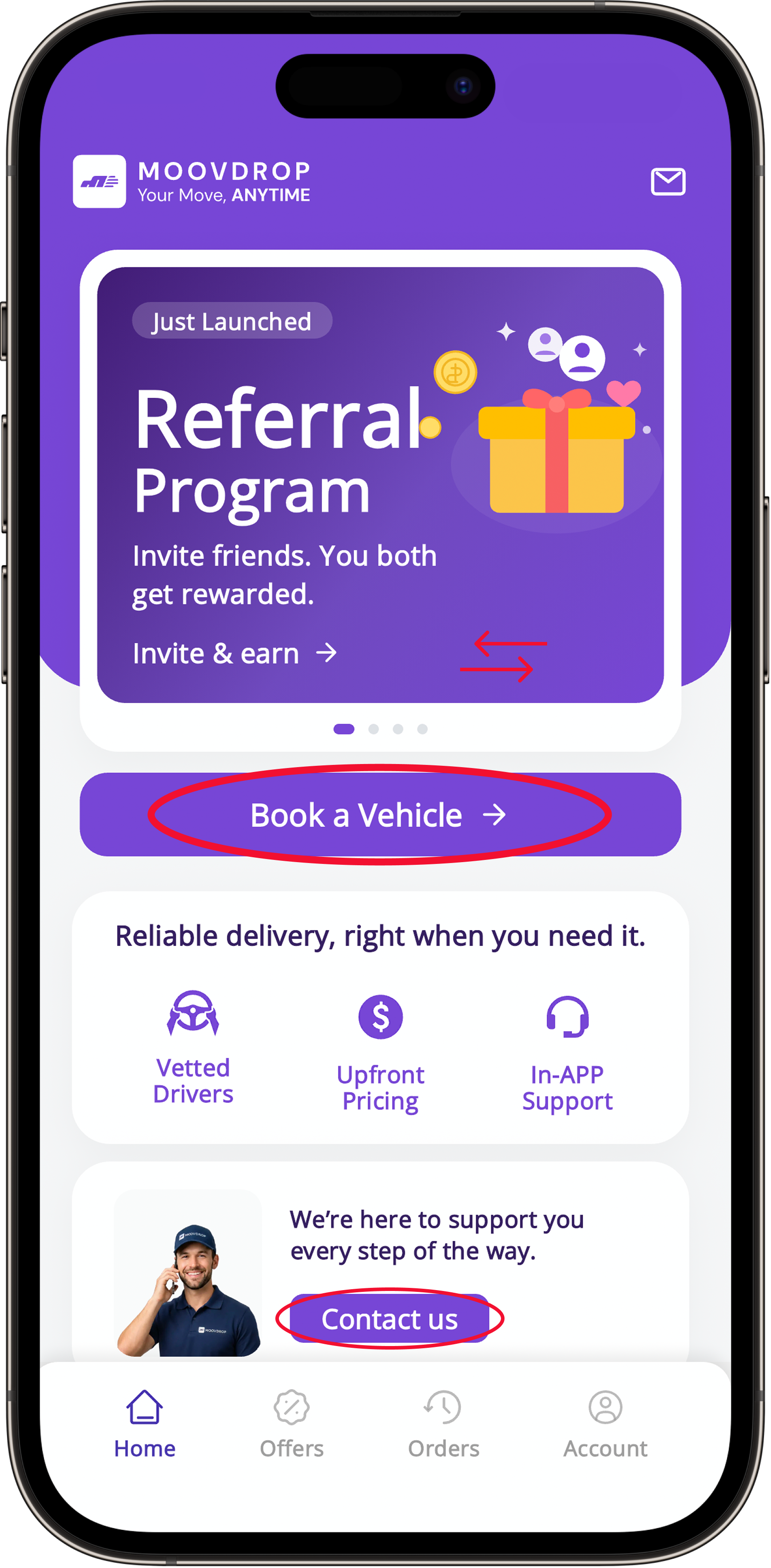
MoovDrop app home screen

Home Screen:

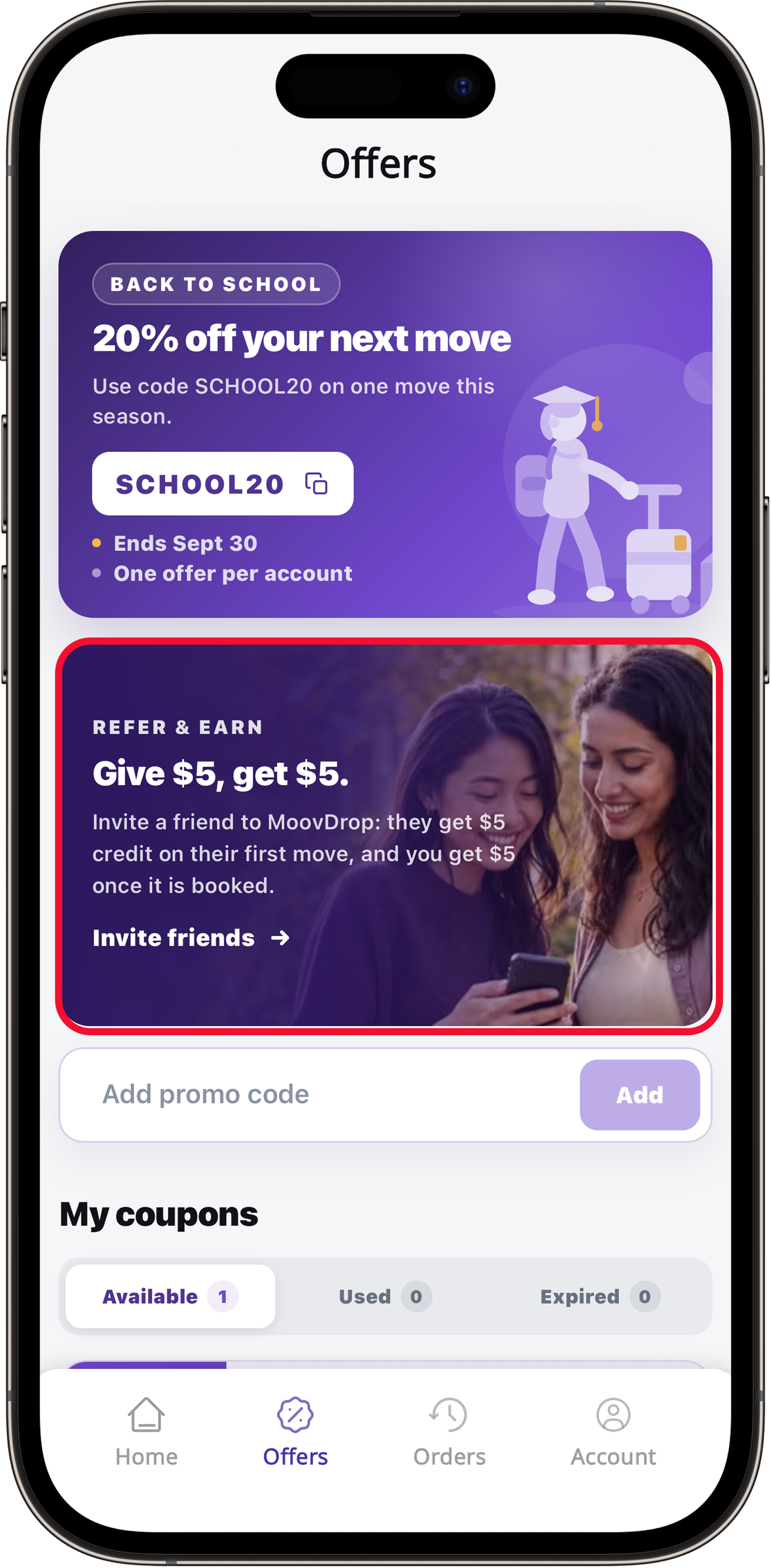
  • Swipe through the carousel to view the on-going promotions and coupons.
  • To book a delivery, click “Book a Vehicle” to get started.
  • Click the “Contact Us” button at the bottom of the screen to get in touch with our support team.
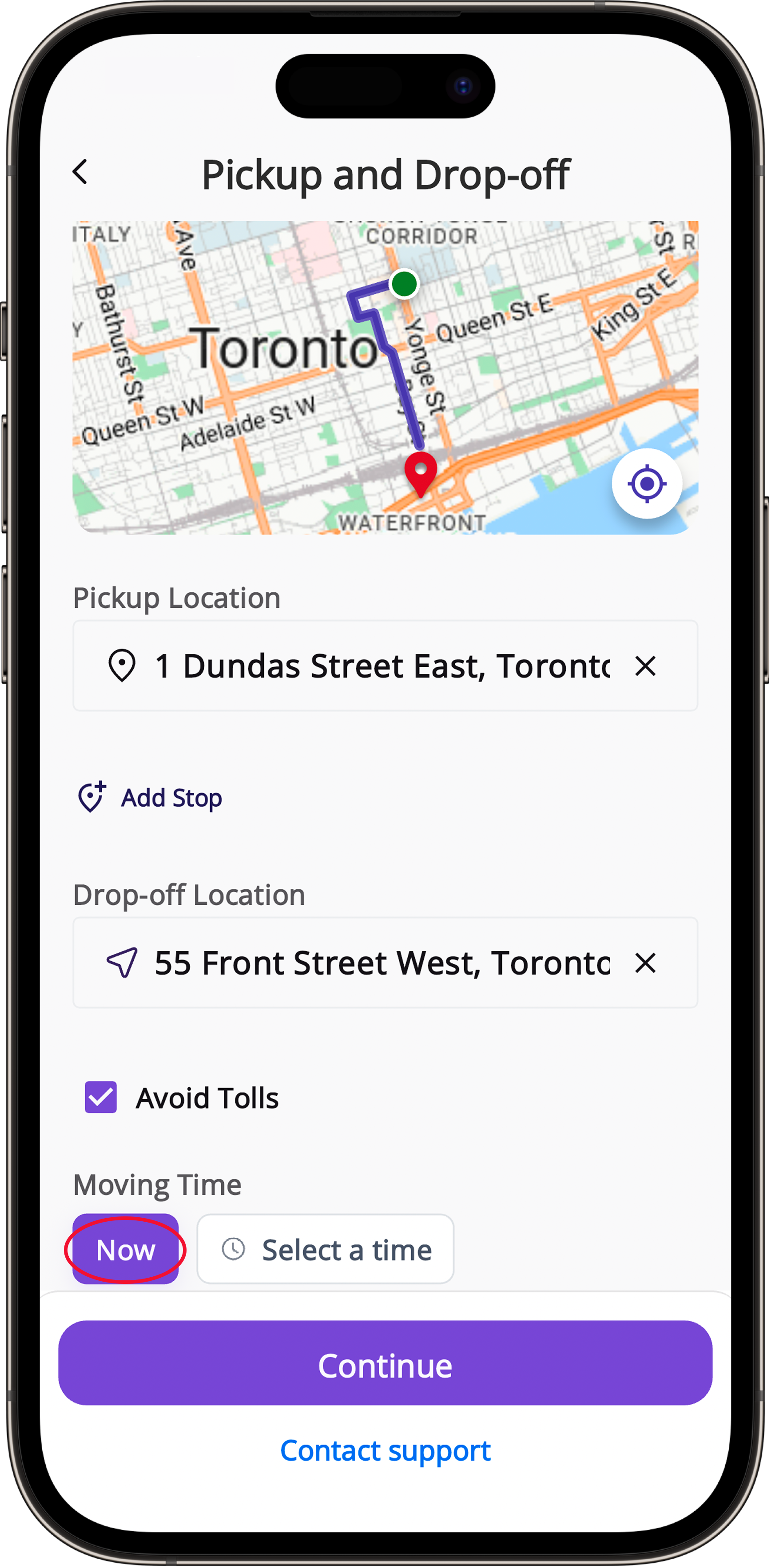
MoovDrop pickup location screenMoovDrop drop-off location screen

Pickup & Drop-off

Now

  • Enter your pickup and drop-off locations.
  • Add a stop if you want.
  • Select “Now” to request a driver immediately.
  • Click “Continue” to proceed.

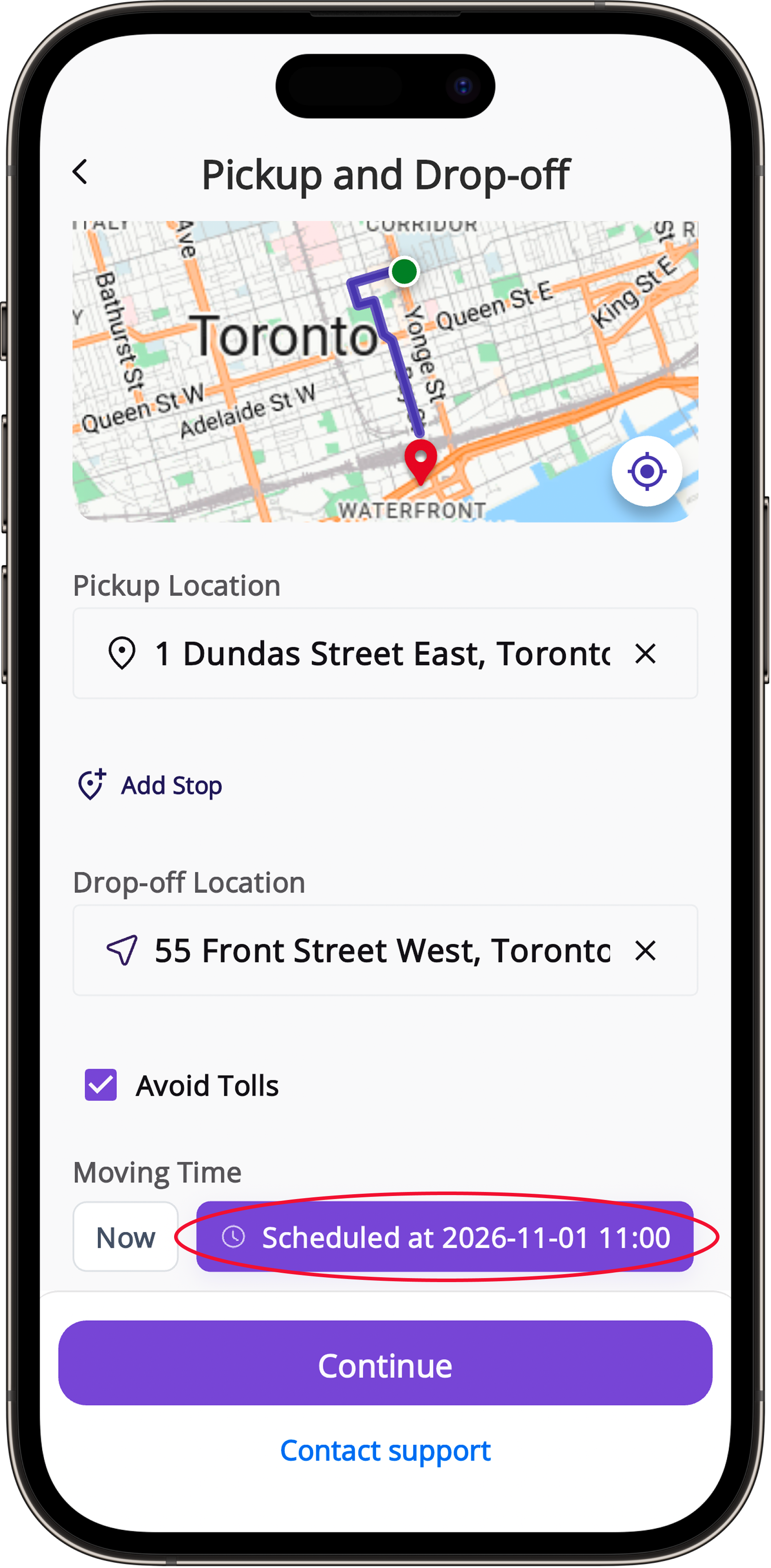
Scheduled

  • To book a delivery in advance, select “Select a time”.
  • Choose your preferred date and time. The selected time will be highlighted in purple.
  • Click “Continue” to proceed.
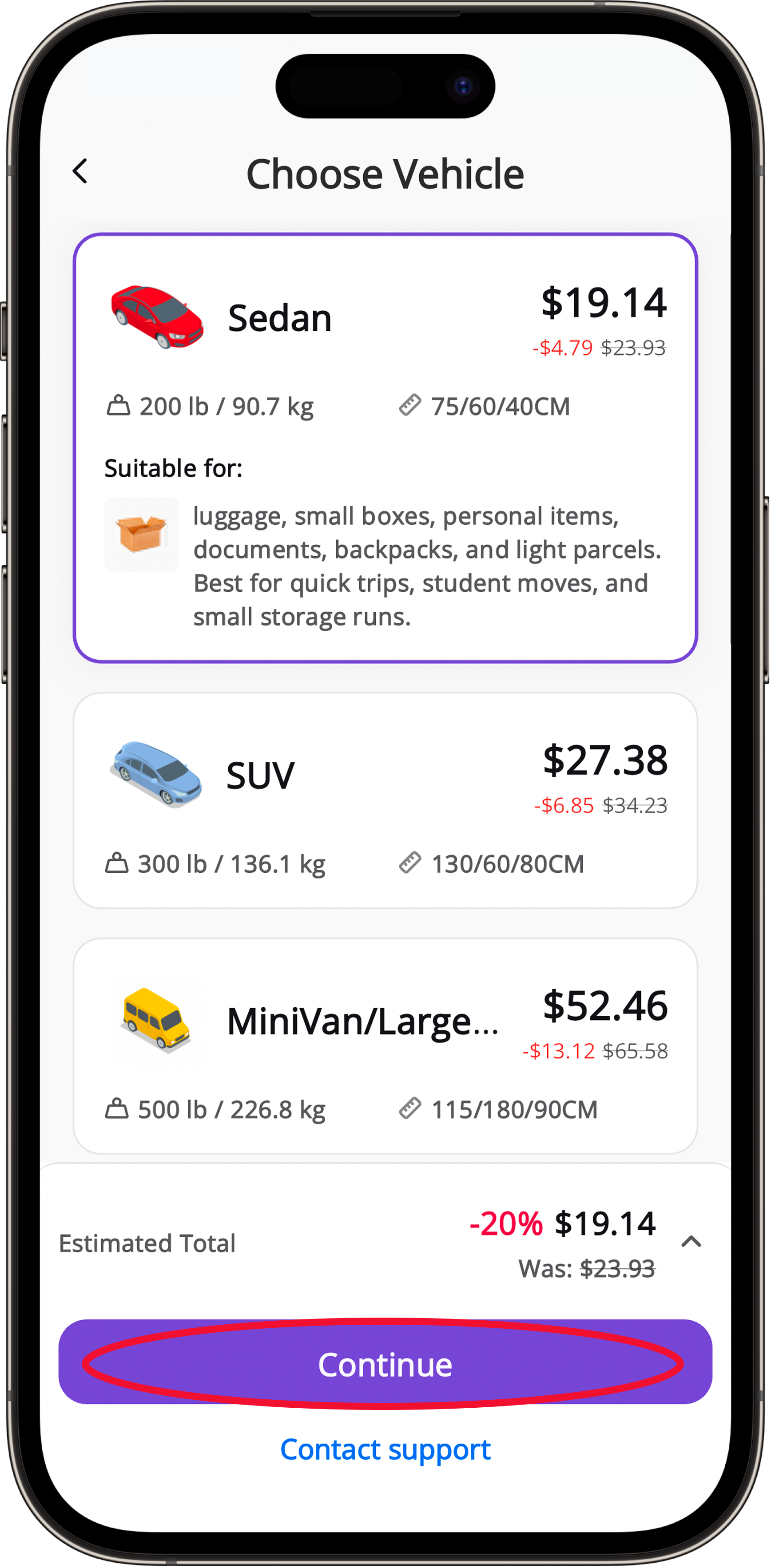
MoovDrop vehicle selection screenMoovDrop vehicle specifications screen

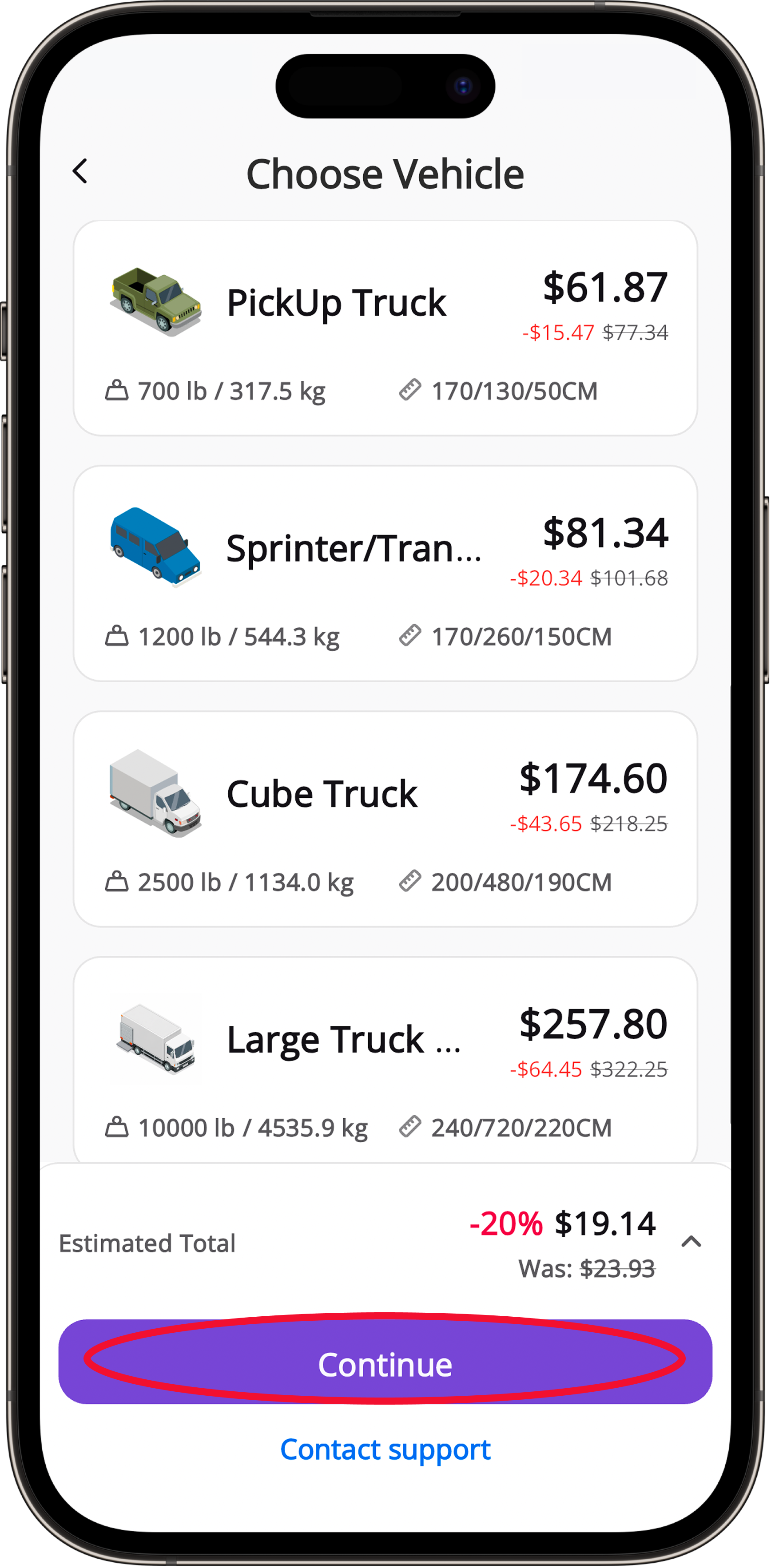
Choose your vehicle size

  • Tap on each vehicle to view its description and specifications.
  • Vehicle options range from a sedan to 24ft Trucks with Liftgate.
  • Choose the vehicle that is best suited for the size of your move. If you're unsure about the vehicle size you require, Call 1-888-699-2113 and one of our customer service representatives will help you.
  • Once you’ve selected your vehicle, click “continue” to proceed.
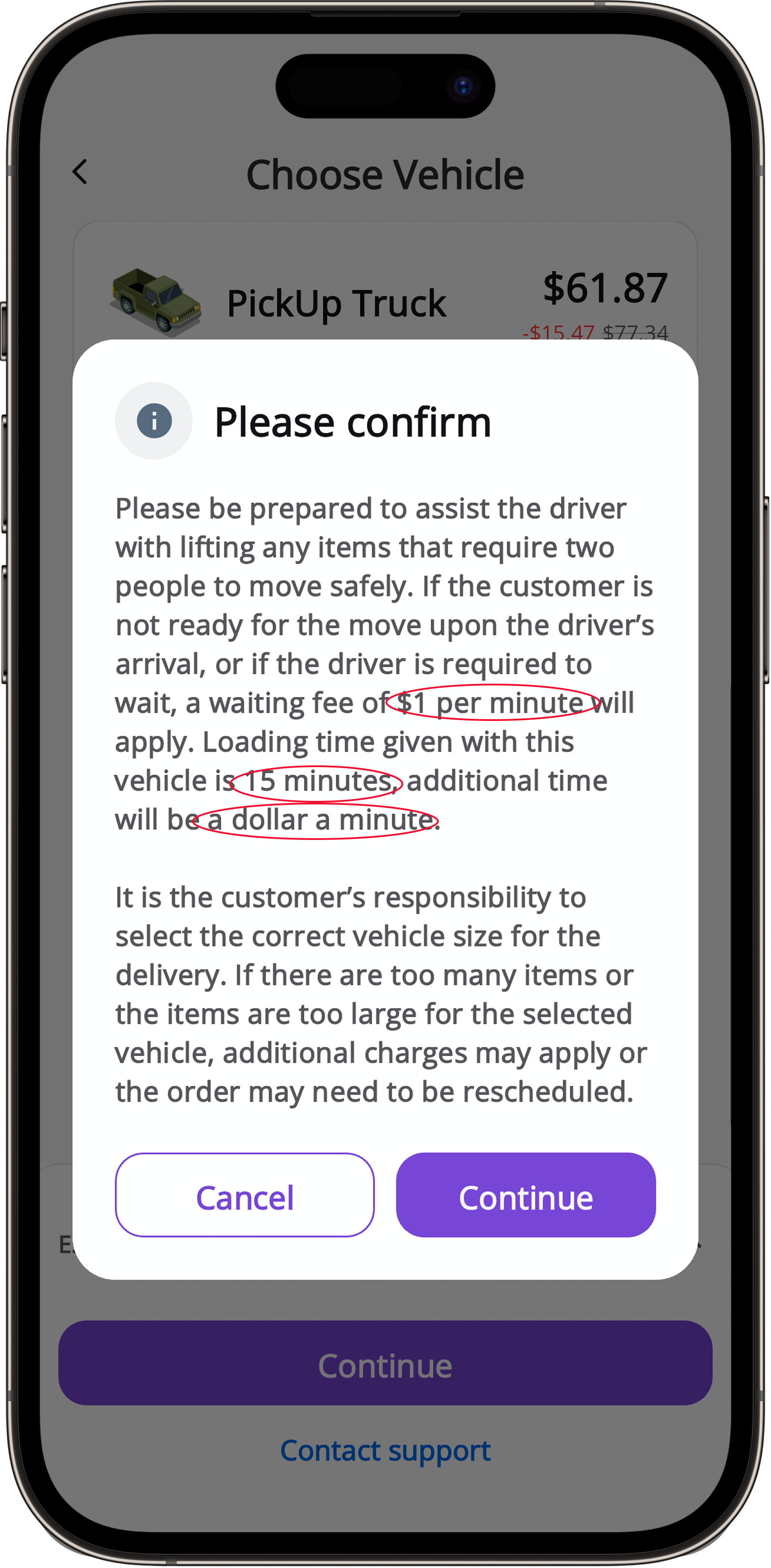
MoovDrop loading notes screen

Loading Notes

Be Prepared: Please be ready to assist with moving items that require two people to move safely.

Loading Time: Each vehicle includes 15-30 minutes of standard loading time (free of charge), depending on the vehicle size. Additional loading time is charged at $1 per minute.

Waiting Fee: A $1 per minute waiting fee applies if the customer is not ready when the driver arrives.
- There is a 15-minute buffer we give clients to meet the driver after they arrive on location.
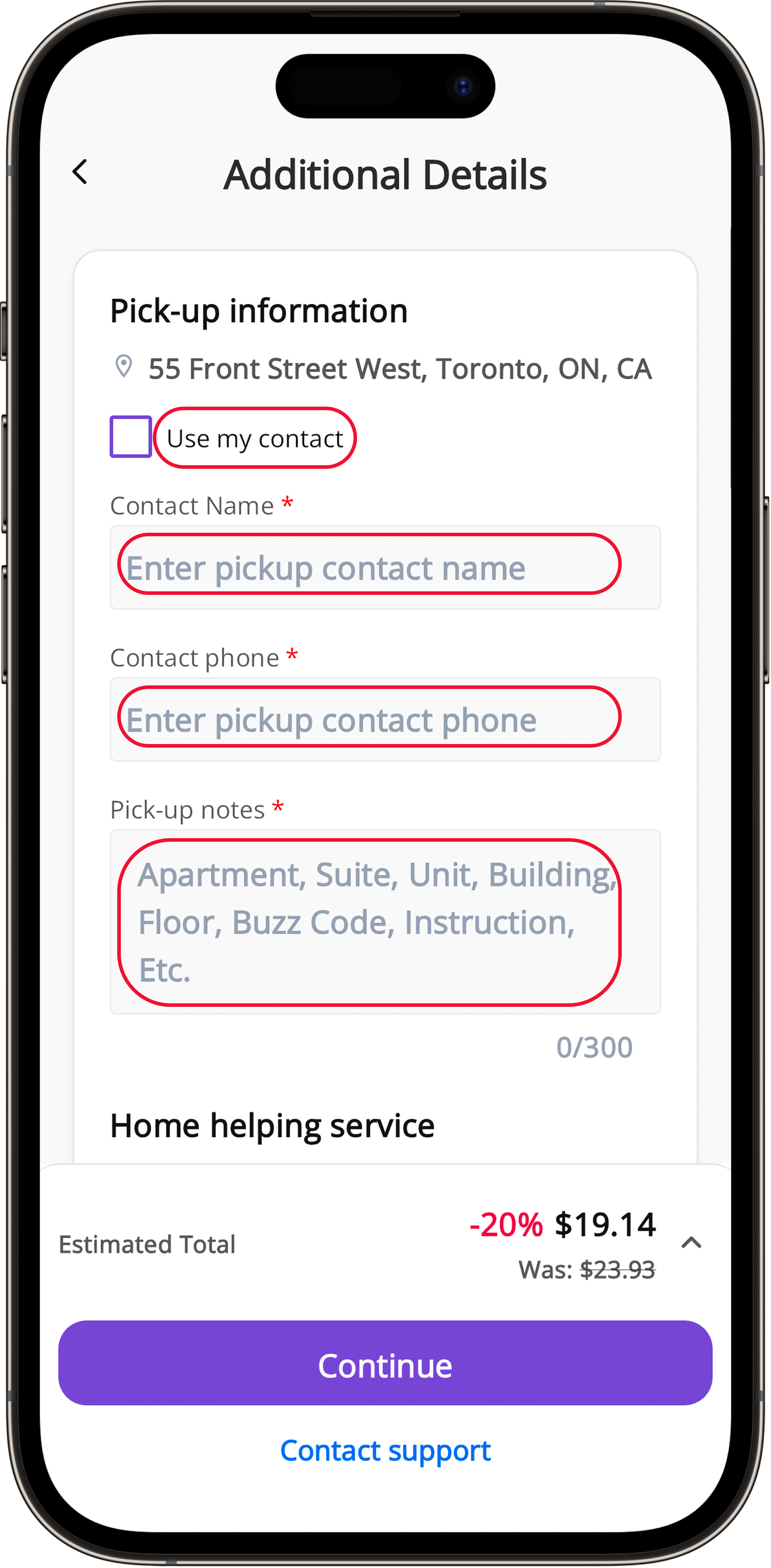
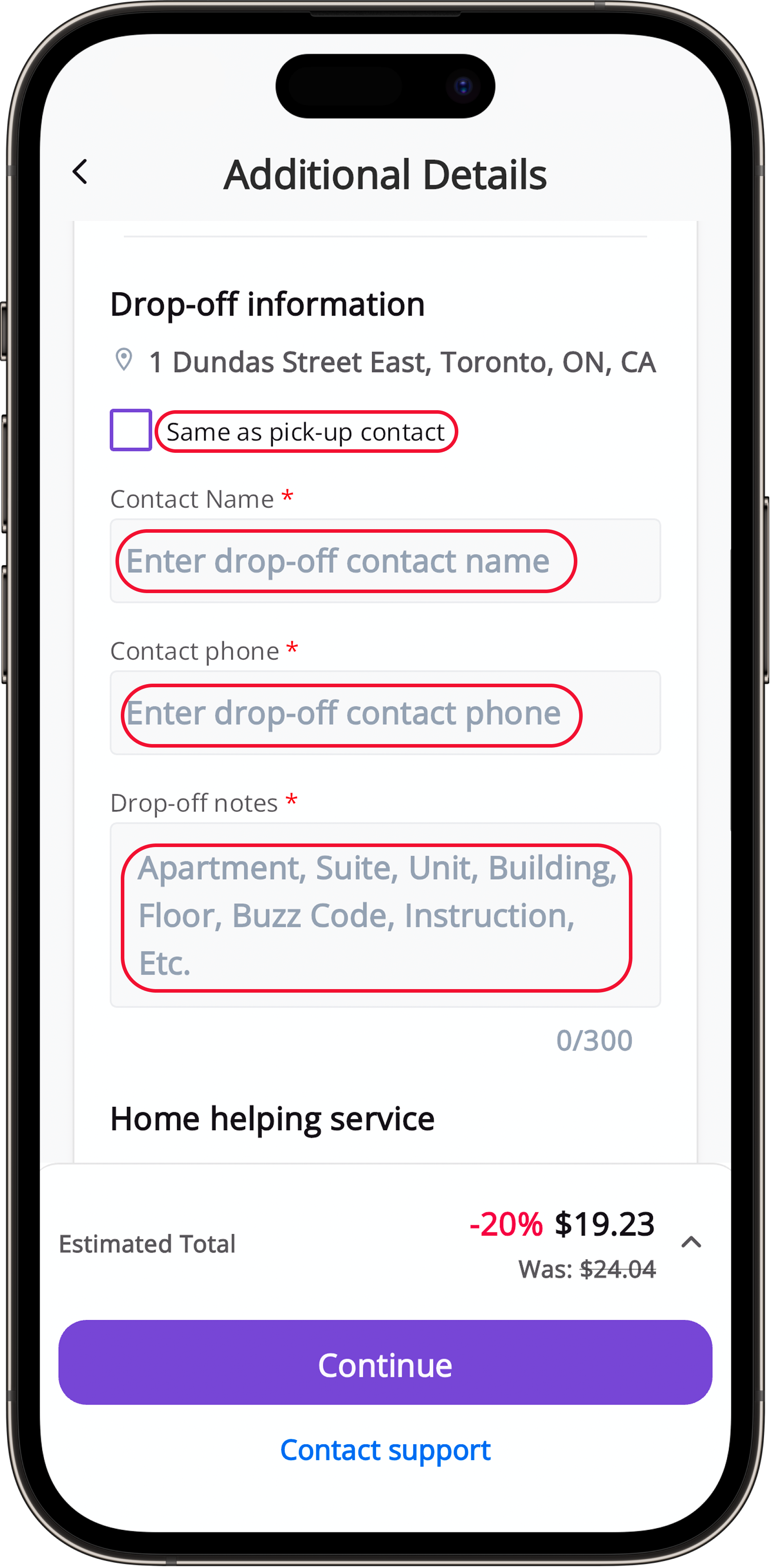
MoovDrop pickup contact screenMoovDrop drop-off contact screen

Pickup & Drop-off Instructions

  • “Use My Contact” or enter a specific contact name and phone number. Pickup and drop-off contacts can be different
  • In the notes section, leave the driver the unit #, any special instructions, and information about who they will be meeting.
  • The more details you provide, the more efficient and seamless the delivery process will be.
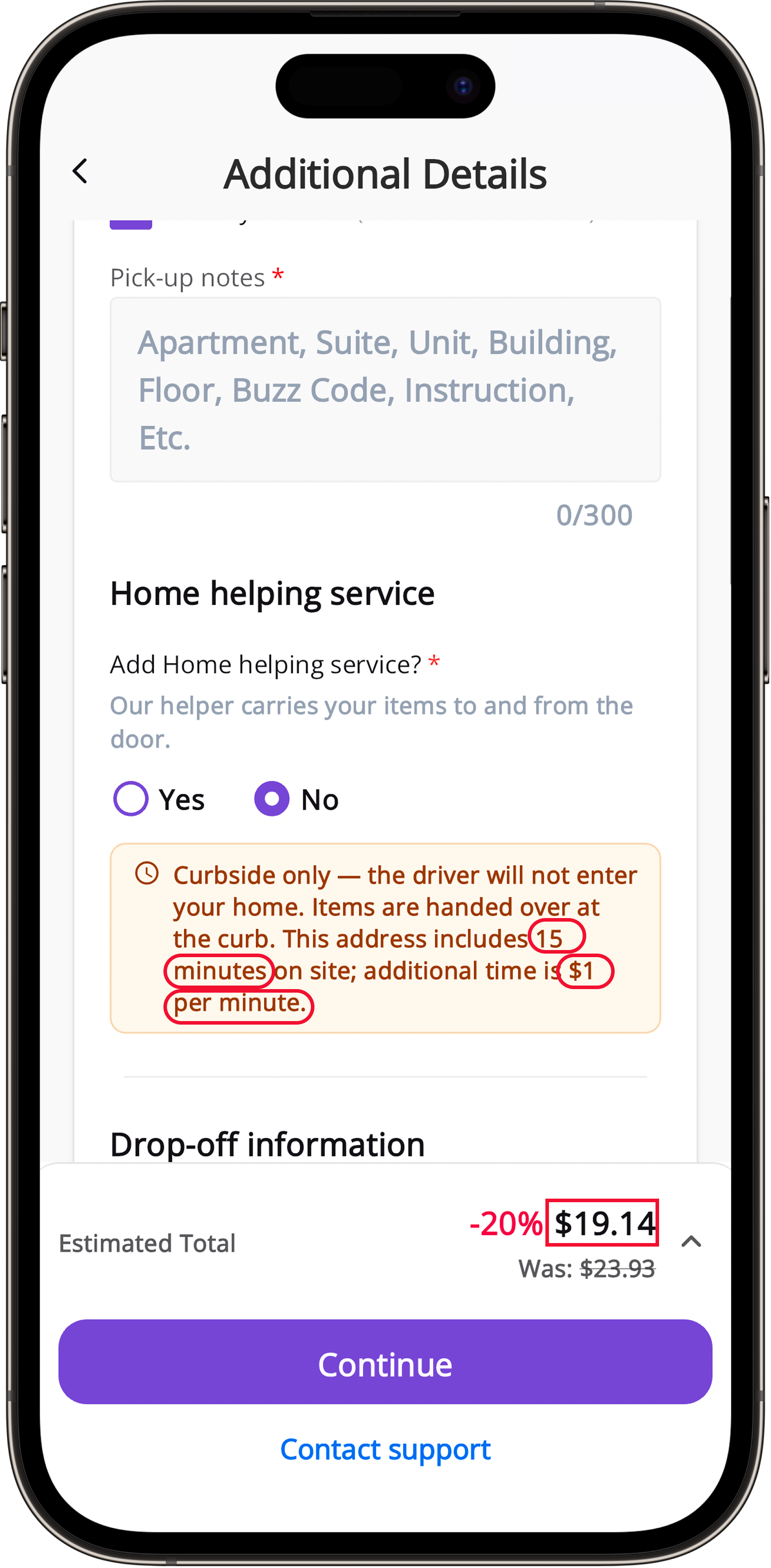
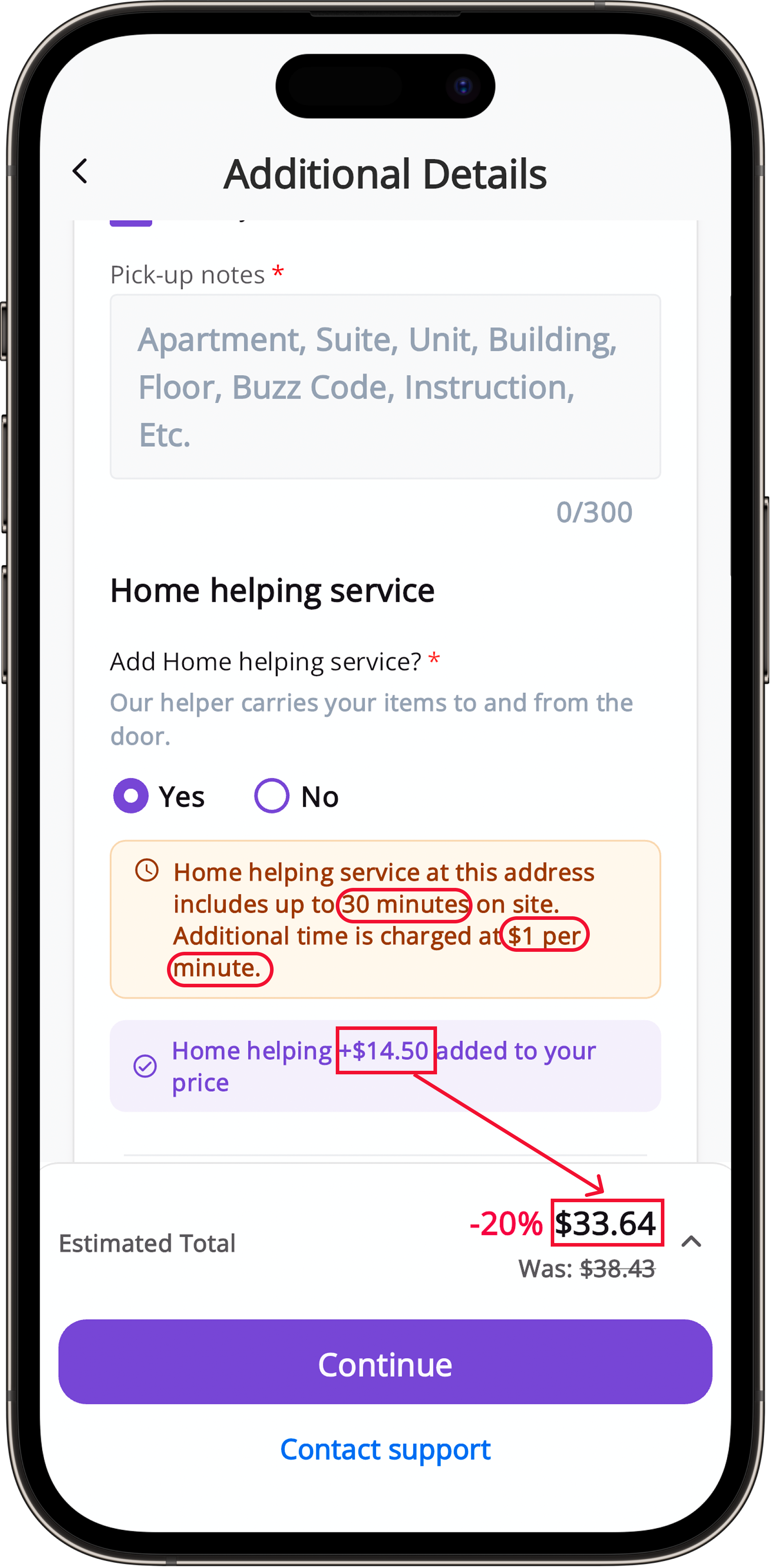
MoovDrop home helping selection screenMoovDrop home helping details screen

In-home helping service

Home helping Service is an optional service that may be added to the pick-up, drop-off, or both.
Please note: regardless of if you chose to add home helping service, the minimum 15-minute standard on-site time will be included – free of charge
  • Home Helping - Yes: The driver will enter the building (your home, the office, the store, etc...) to help you move your items. A Home Helping fee will be added to your Estimated Total. The included on-site time varies by vehicle size.
  • Home Helping - No: The driver will not enter the building. Please have your items ready at the curbside or pickup spot.
  • Additional Time: Any time the driver spends, that goes beyond the included on-site time is charged at $1 per minute, whether home helping service has been selected or not.
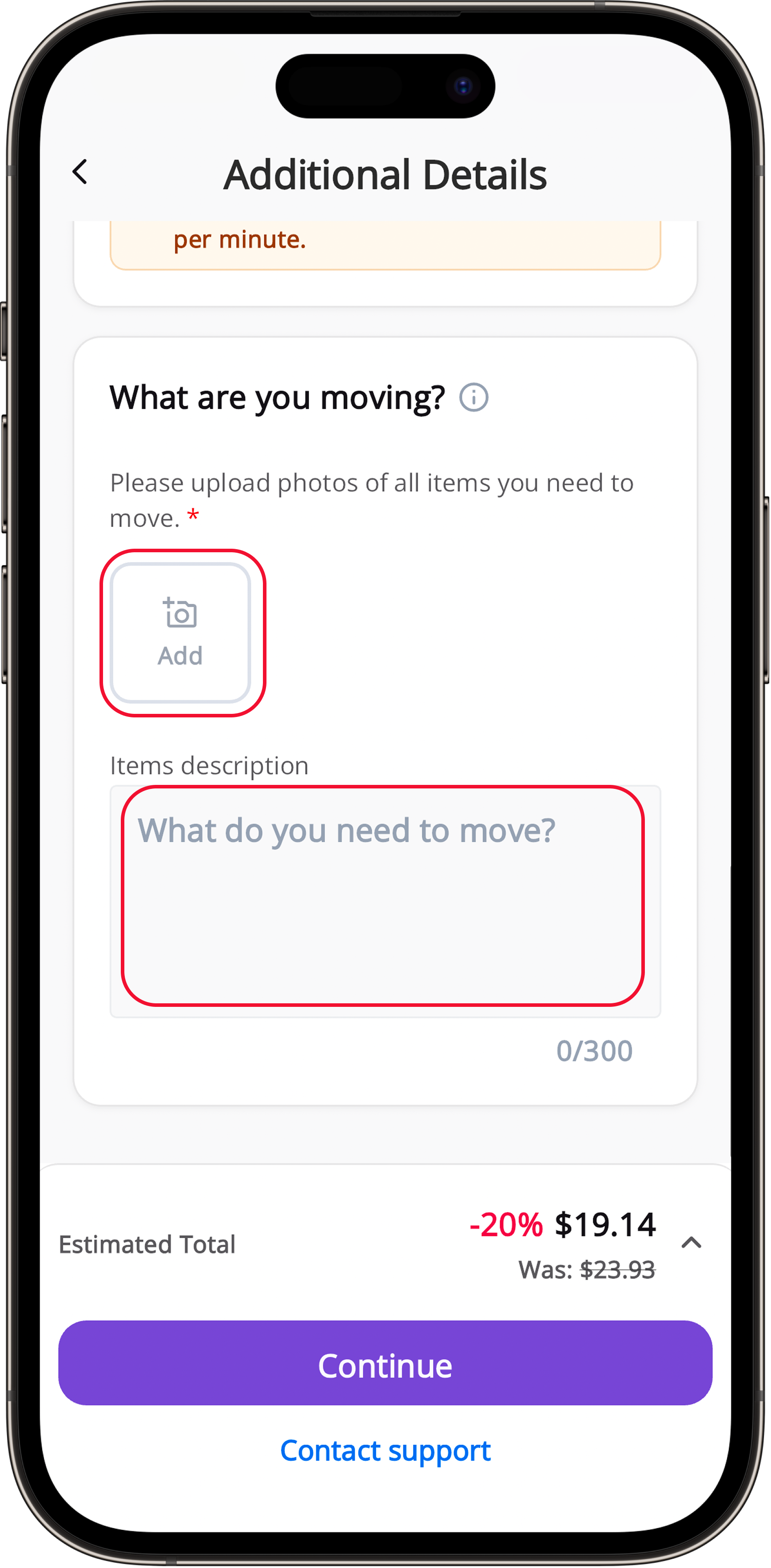
MoovDrop items you are moving screen

Items you are moving (photos)

  • Please take pictures or upload pictures of all the items you wish to move. We will only move what’s visible in the images.
  • If you have an invoice for curbside pickup, it can be uploaded here.
  • You may leave a description of your items to provide more information to the driver
  • Click “Continue” to proceed
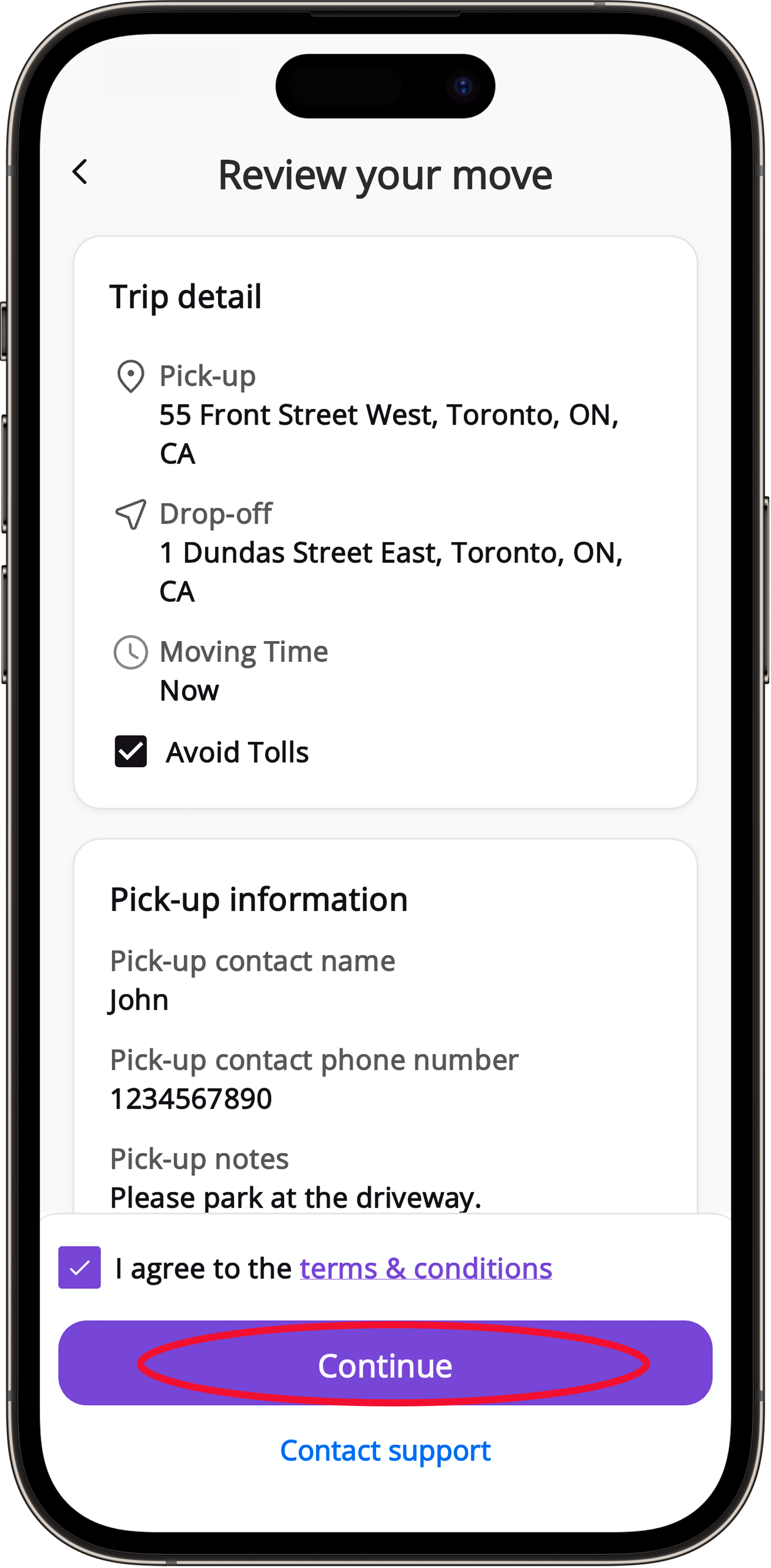
MoovDrop move review screenMoovDrop place order screen

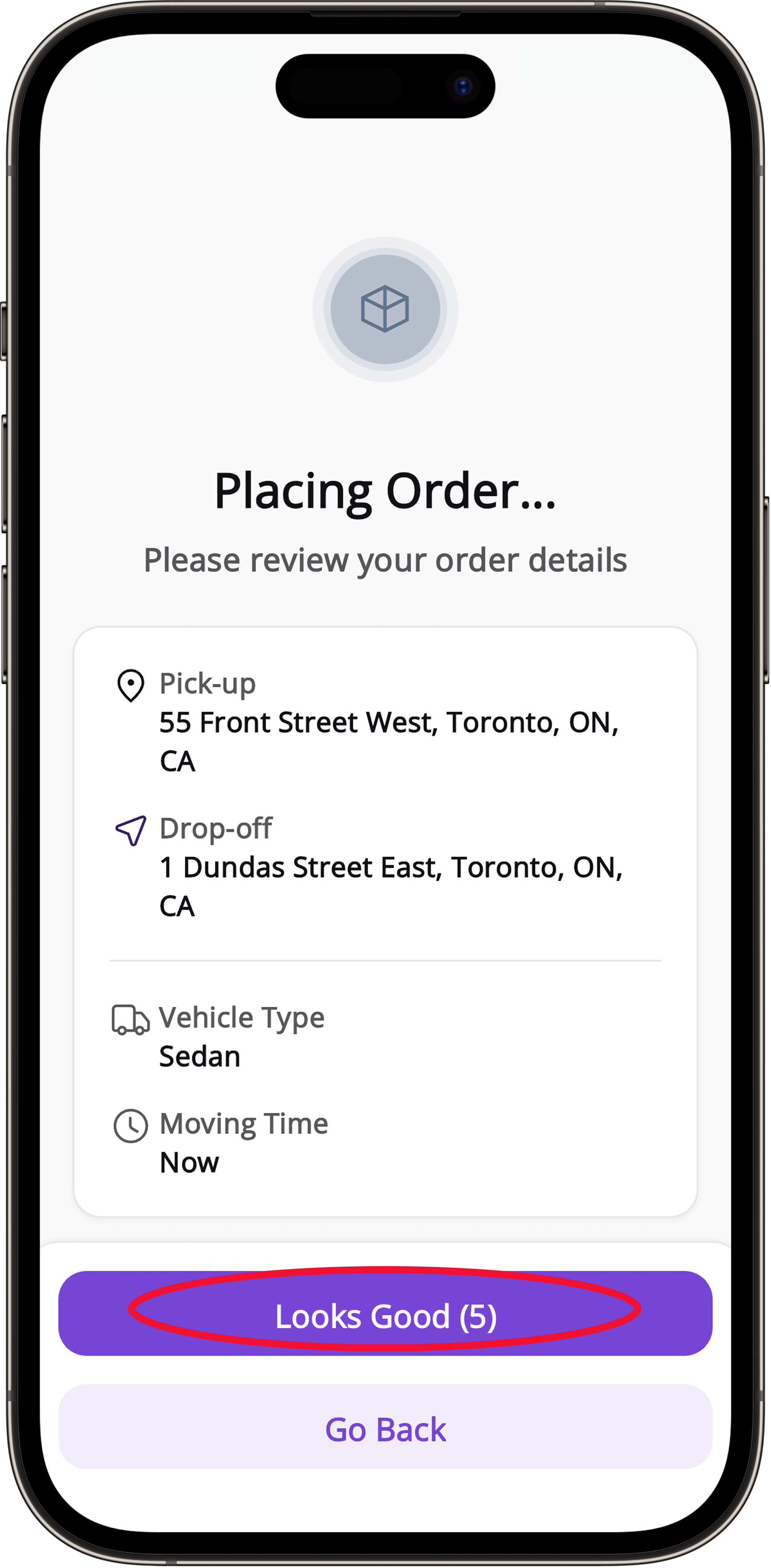
Review Your Move & Place Order

  • Review Your Details: Review your delivery details and make sure all the information is correct before continue.
  • Place Your Order: Click “looks good” to proceed to the payment page and complete your order
MoovDrop payment selection screenMoovDrop coupon and payment screen

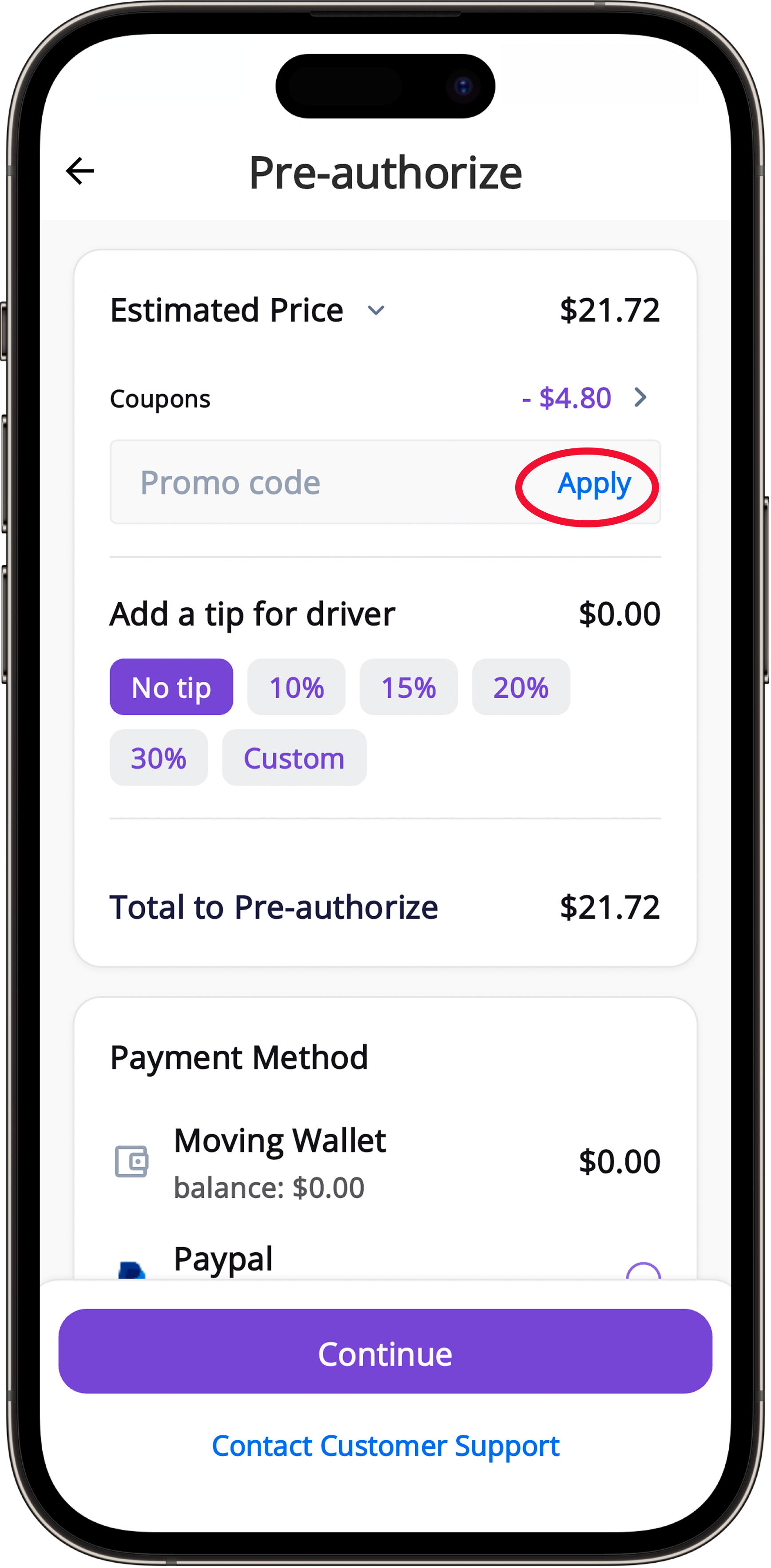
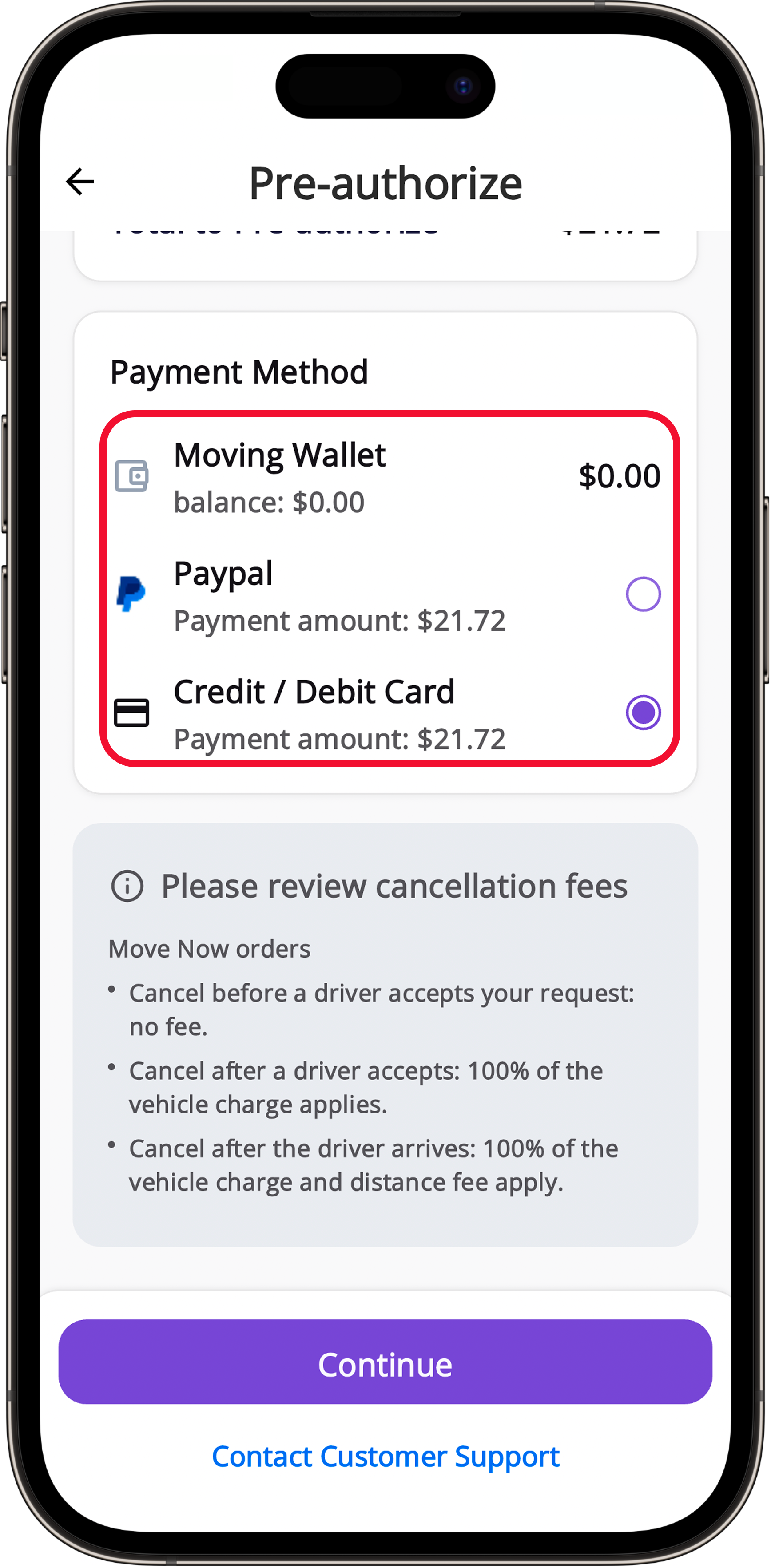
Payment and Coupon:

  • Can apply coupon if not already applied.
  • Select desired payment through “Moving Wallet”, “PayPal” or “Credit/Debt Card”.
  • Once selected, click “Continue” to place and finalize order.
  • Driver will be pinged and on the way to you shortly or have the delivery in their schedule for the desired date.
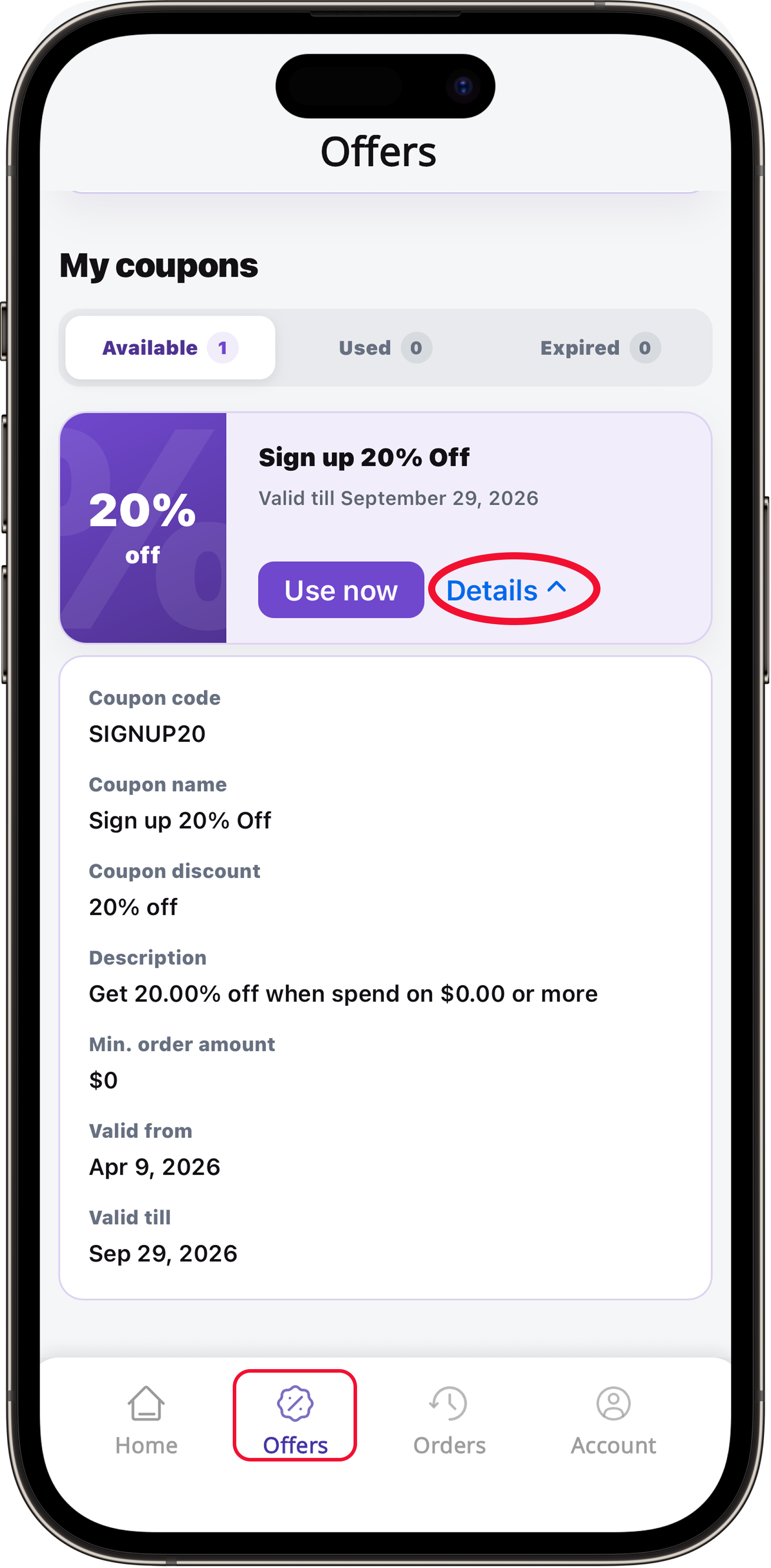
MoovDrop offers tabMoovDrop coupon details screen

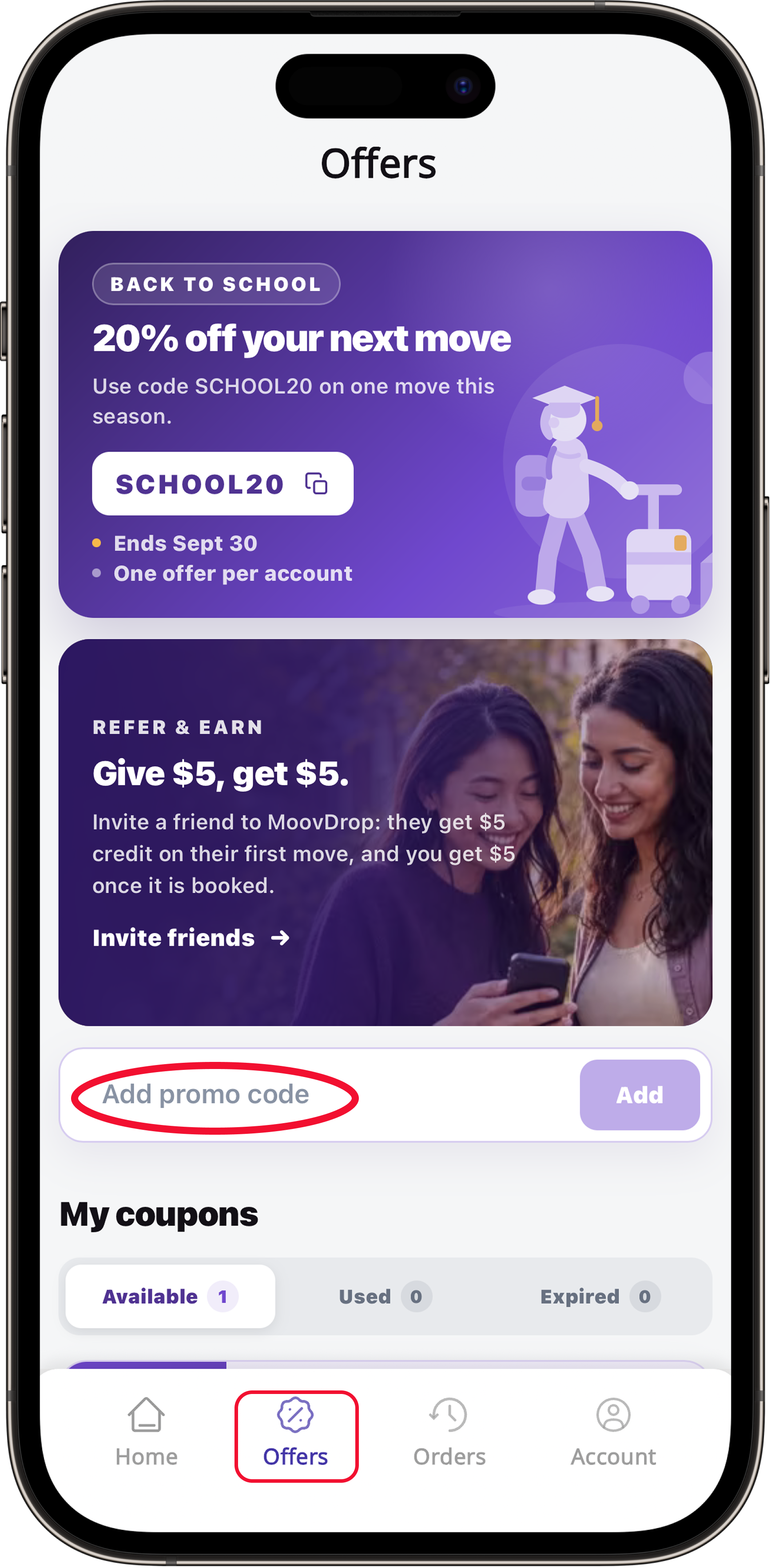
Coupons & Offers

  • Go to the “Offers” tab to view available coupons.
  • Add available coupons to your account before starting your order.
  • Tap on a coupon to view its details.
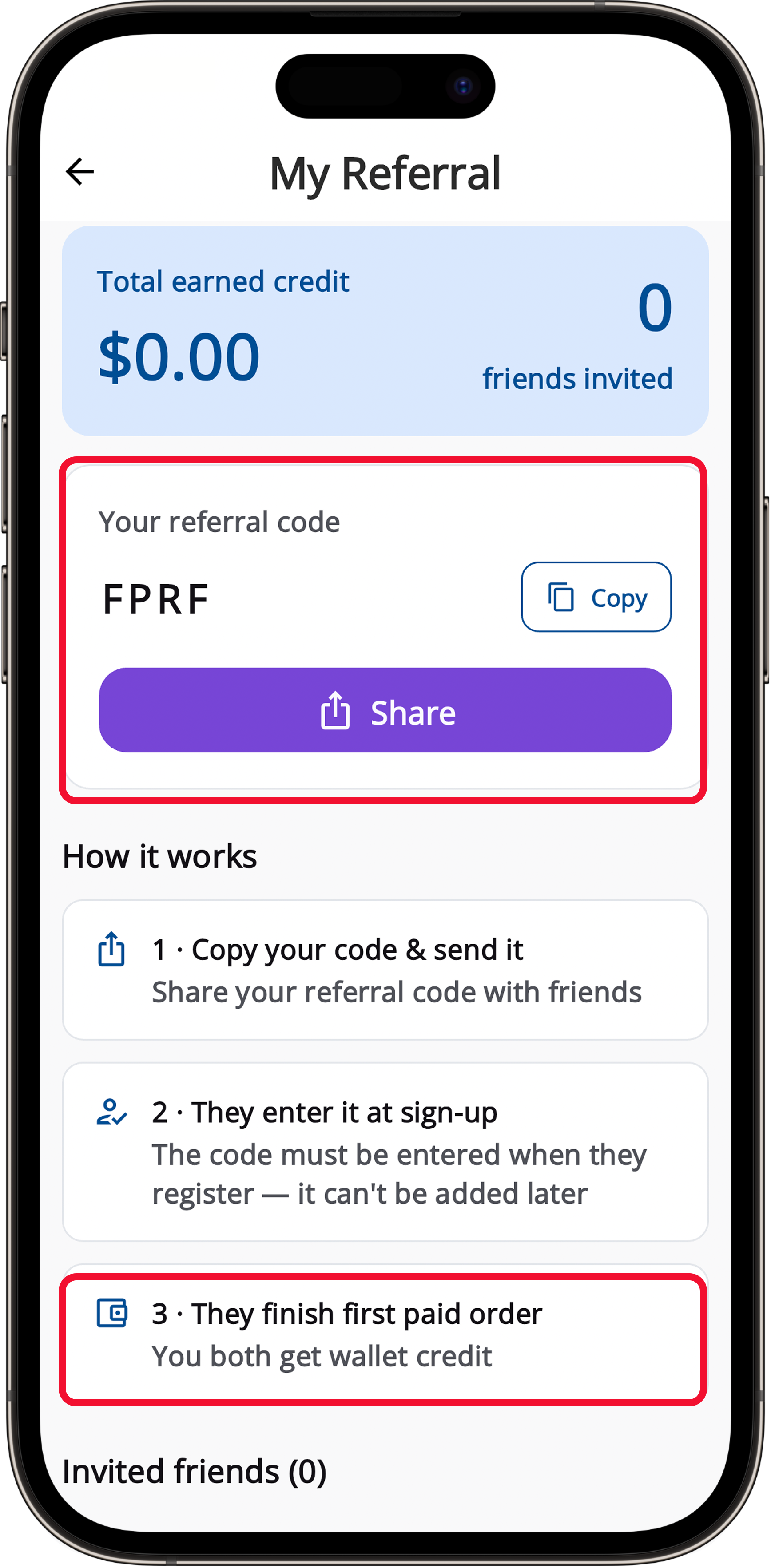
MoovDrop referral code screenMoovDrop wallet credit screen

Refer & Earn

  • Copy your referral code and share it with your friends.
  • Your friend enters the code when they register.
  • Once they complete their first paid order, you both receive wallet credit.